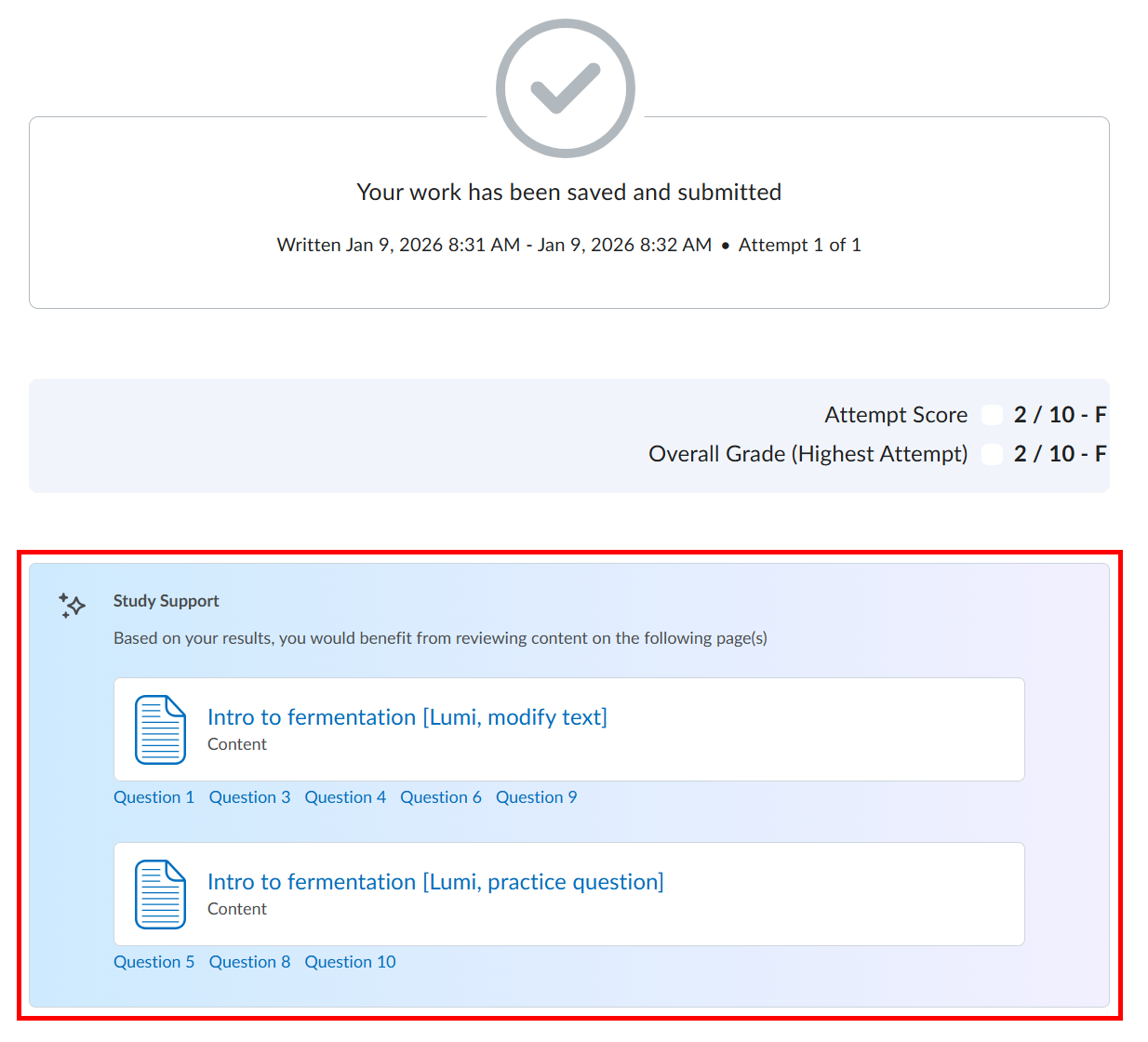
The Lumi study support tool lets you add support resources to a quiz. These resources are displayed after a student completes the quiz and are dependent on the student's answers to quiz questions. This tool may be most effective with low-stakes quizzes where students have multiple chances to take a quiz.
The Lumi study support tool works best when quiz questions are aligned with learning outcomes. Contact the Curriculum & Instruction team at [email protected] for assistance with adding outcomes to your course.
Within a quiz, expand the Evaluation & Feedback section. Then toggle on Study Support:
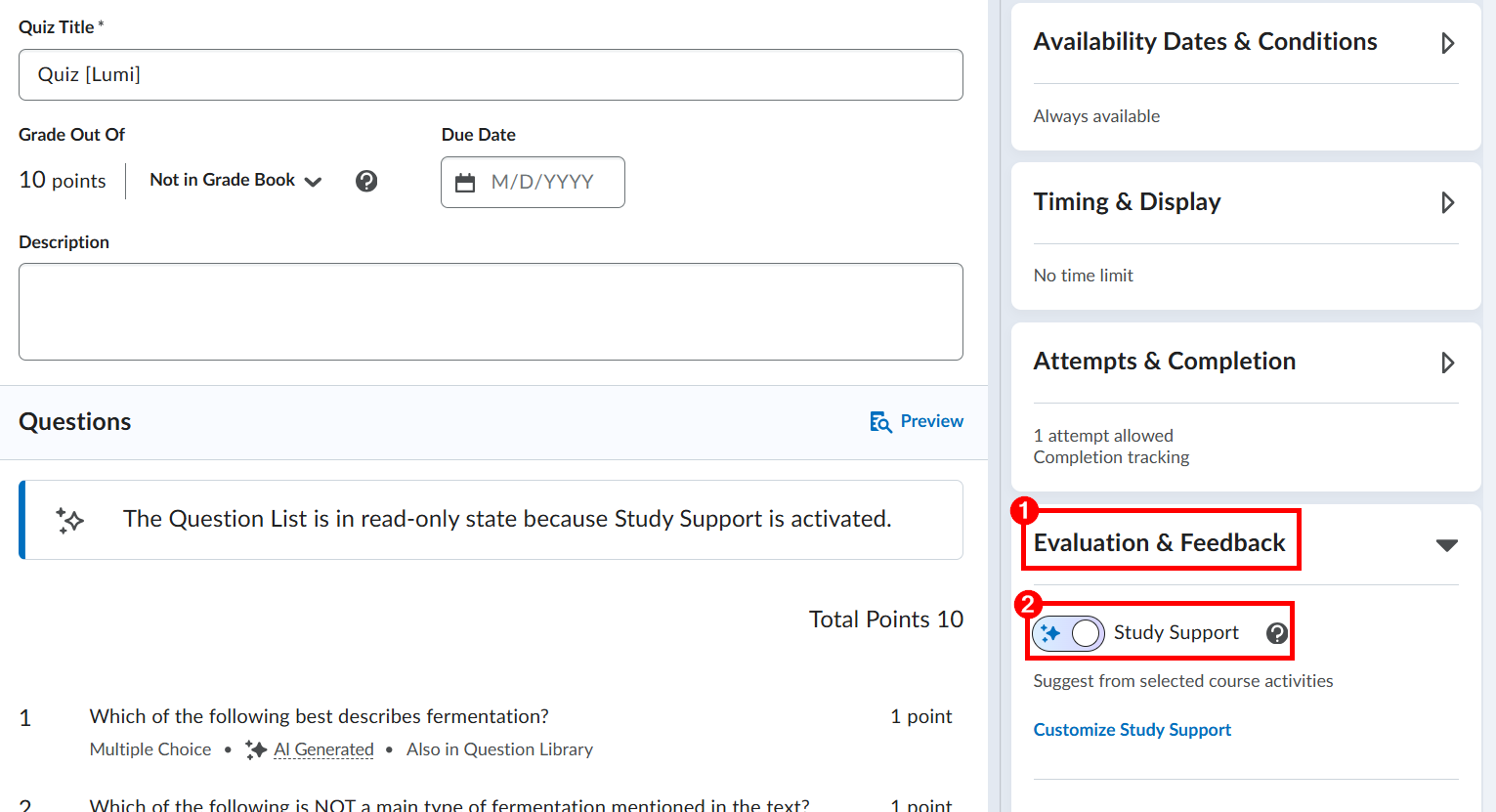
You will then be prompted to customize the Lumi study support feature for this quiz.
When Lumi study support is added to a quiz, the following settings will automatically be set for the quiz:
- Results will be automatically published after each attempt.
- Grades will be displayed to learners immediately after submission.
In addition, you will not be able to edit quiz questions after Lumi study support has been enabled.
When enabled, the Lumi study support feature will look like this to students: