

Instructor Profile Widget

Jul 02, 2026
1890

From your course homepage, scroll down to find the Instructor Profile Widget. To edit, click on the drop down at the top right of the widget, then click on "Configure this widget"
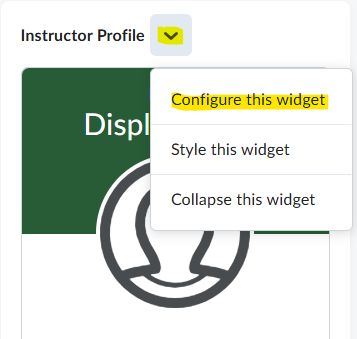
Click to edit the Heading, Display Name, About Me, etc. Click on the grey upload button to add a profile picture.

You can also add your public Facebook, Twitter (X), LinkedIn, Email, or Instagram URLs at the bottom. Delete the URLs completely to remove social media links from your profile. Click the blue "Save" button when finished.

