178
178
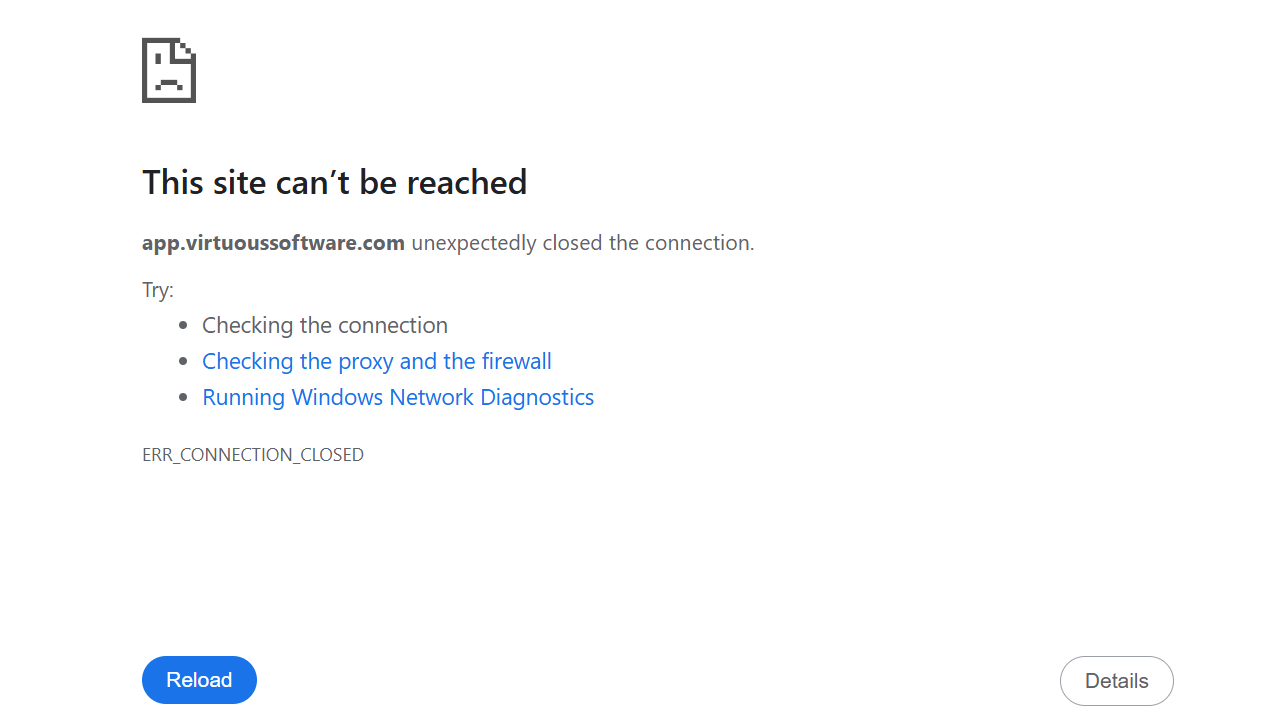
If you recieve an error message like the image below when connected to FortiClient, this may be due to a web browser extension issue.
How to resolve this issue if you are using Google Chrome:
1. Enter chrome://extensions/ into your URL and hit enter.
2. Find any extension that has the Title "Fortinet" or "Forticlient" in it and select "Details."
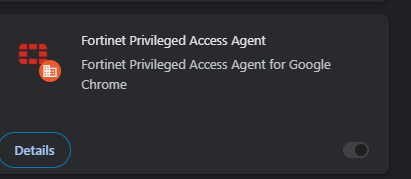
3. Select "Allow in incognito" and "Allow access to file URLs"
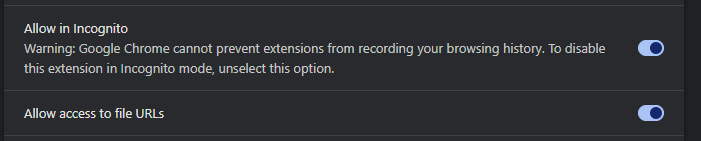
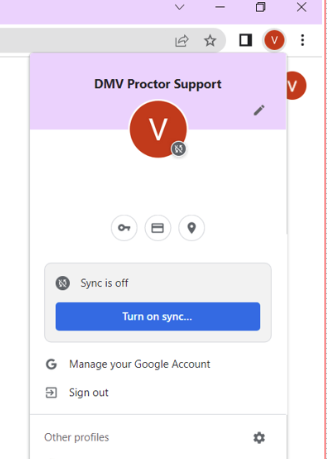
4. Repeat these steps with each Chrome profile. Your Chrome profiles can be found at the top right of the browser, next to the three vertical dots.
How to resolve this issue if you are using Microsoft Edge:
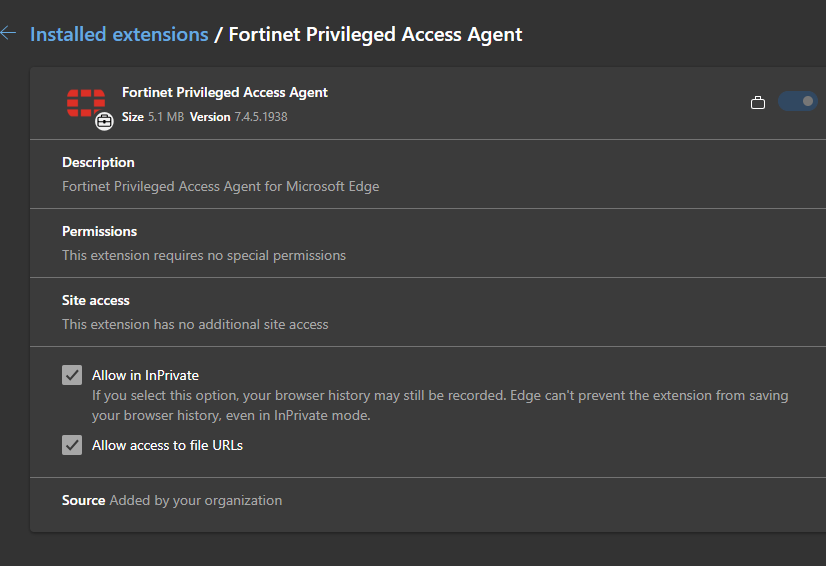
1. Enter edge://extensions into your URL and press Enter. From there, select the three horizontal dots (see screenshot below for all steps)
2. . Find any extension that has the Title "Fortinet" or "Forticlient" in it and select "Details."
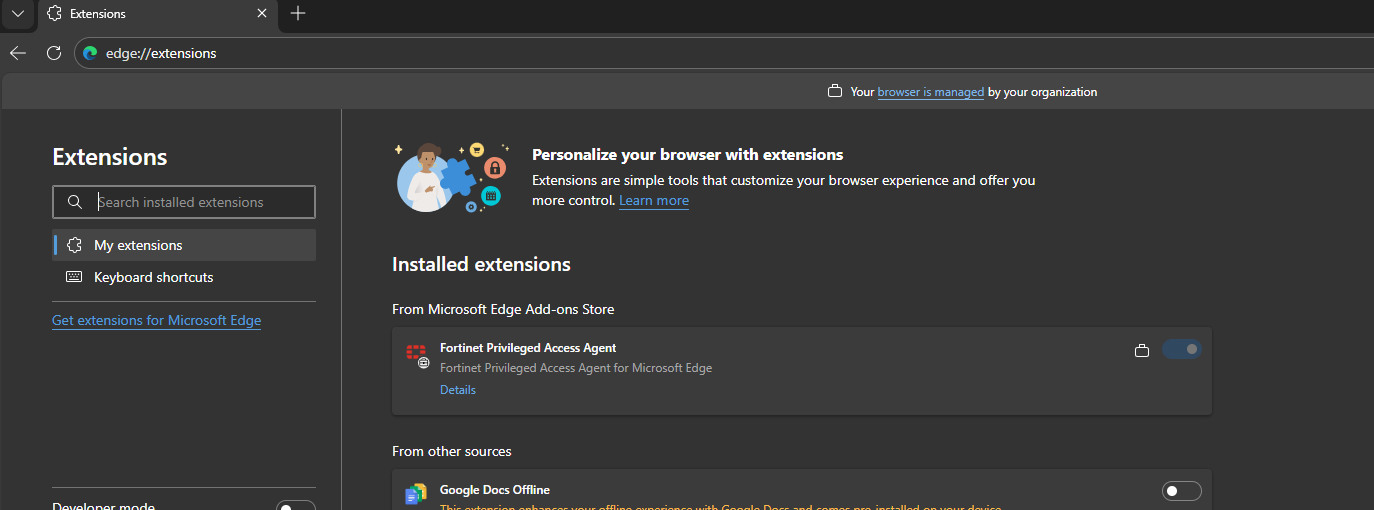
3. Select "Allow in InPrivate" and "Allow access to file URLs"
4. Repeat these steps in each profile that you have in Microsoft Edge.