


 1972
1972
Creating a Quiz
To create a quiz, begin by clicking on the "Course Admin" tab in your blue course navbar.

Scroll down and click on the "Quizzes" Tool in the Assessment section.

Click the option to create a New Quiz at the top of the page
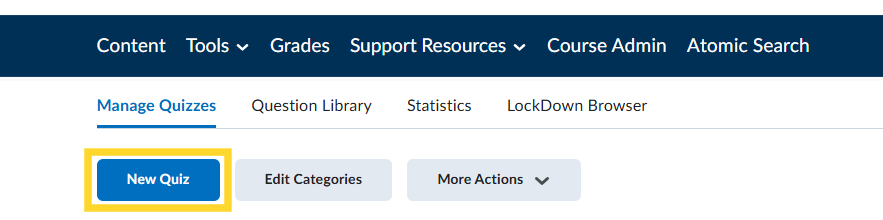
In the quiz editor, update the quiz name and instructions.
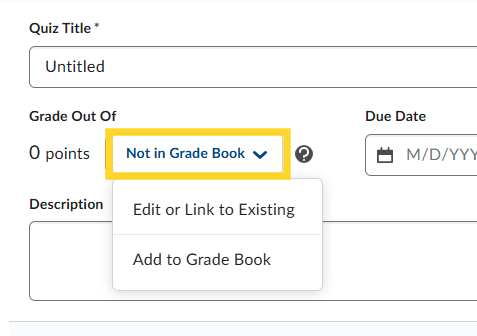
To add the quiz to the gradebook, select the drop-down under the Grade Out Of option. If you want to link the quiz to an existing grade column, select the Edit or Link to Existing option, and follow the prompts. Alternatively, if you want to create a new grade column, select Add to Grade Book and follow the prompts.
Creating New Quiz Questions
To create new quiz questions in the quiz, select Create New and click New Question in the drop-down.
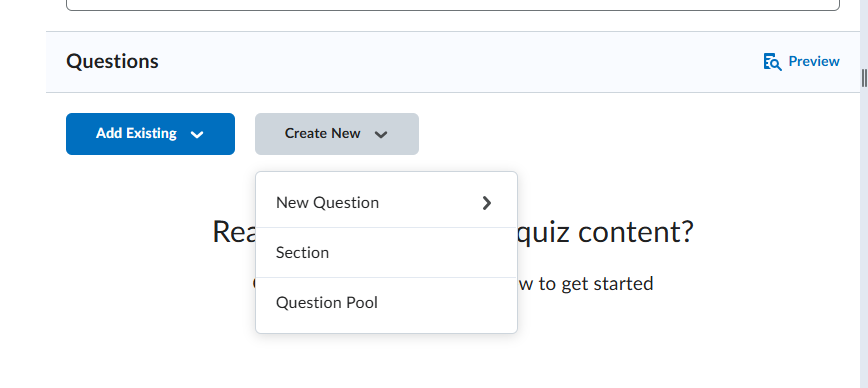
Select the type of question you want to add. And follow the prompts to create the question.
NOTE: If you are copying and pasting information, use Ctrl + Shift + V to paste the information. This will clear any formatting that might get copied over in the
Adding Existing Questions
If you have quiz questions available in a question bank or questions from another quiz that you would like to use, you can click the option to Add Existing, then click Browse Question Library.
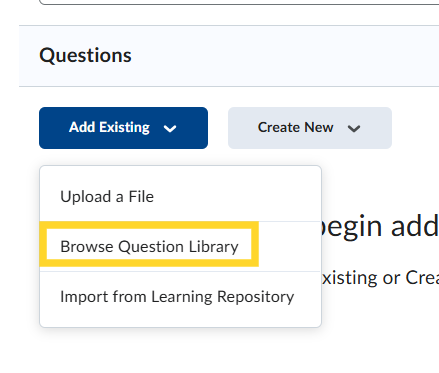
From that page, you can either select the questions from the question bank you want to use.
If you want to use questions from another quiz, you can use the filter option to select the quiz you want to reuse questions from.
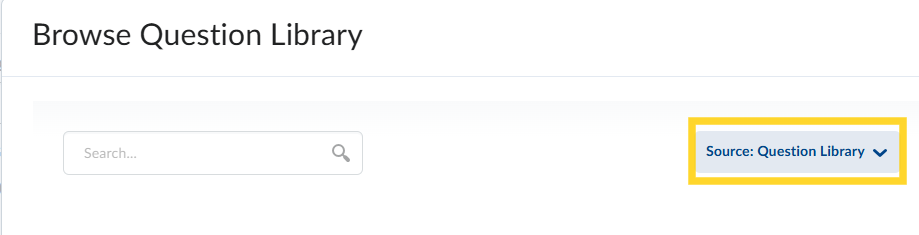
Once you have selected the quiz you want to use questions from, you can select the individual questions you want to use.
Once you've selected the questions you'd like to add to your quiz, click the blue "Import" button at the bottom of the page.
Editing a Quiz
Then scroll down to the item you'd like to edit and click on the caret just to the right of its name and then click "Edit"

From here you can edit the item's name, point value, description, and due date.

You can add questions by clicking on the "Create New" button. You can delete a question by clicking the box to the left of it and clicking the blue "More Actions" caret, then "Delete."

You can edit Availability Dates, Release Conditions, and student Special Access (accommodations) in the "Availability Dates & Conditions" tab. You can edit the time limit and display options in the "Timing & Display" tab. You can edit the number of attempts students get in the "Attempts & Completion" tab. You can edit how feedback is published and made available to your students in the "Evaluation & Feedback" tab on the right side of the page.

Click the blue "Save and Close" button at the bottom of the page when finished.

