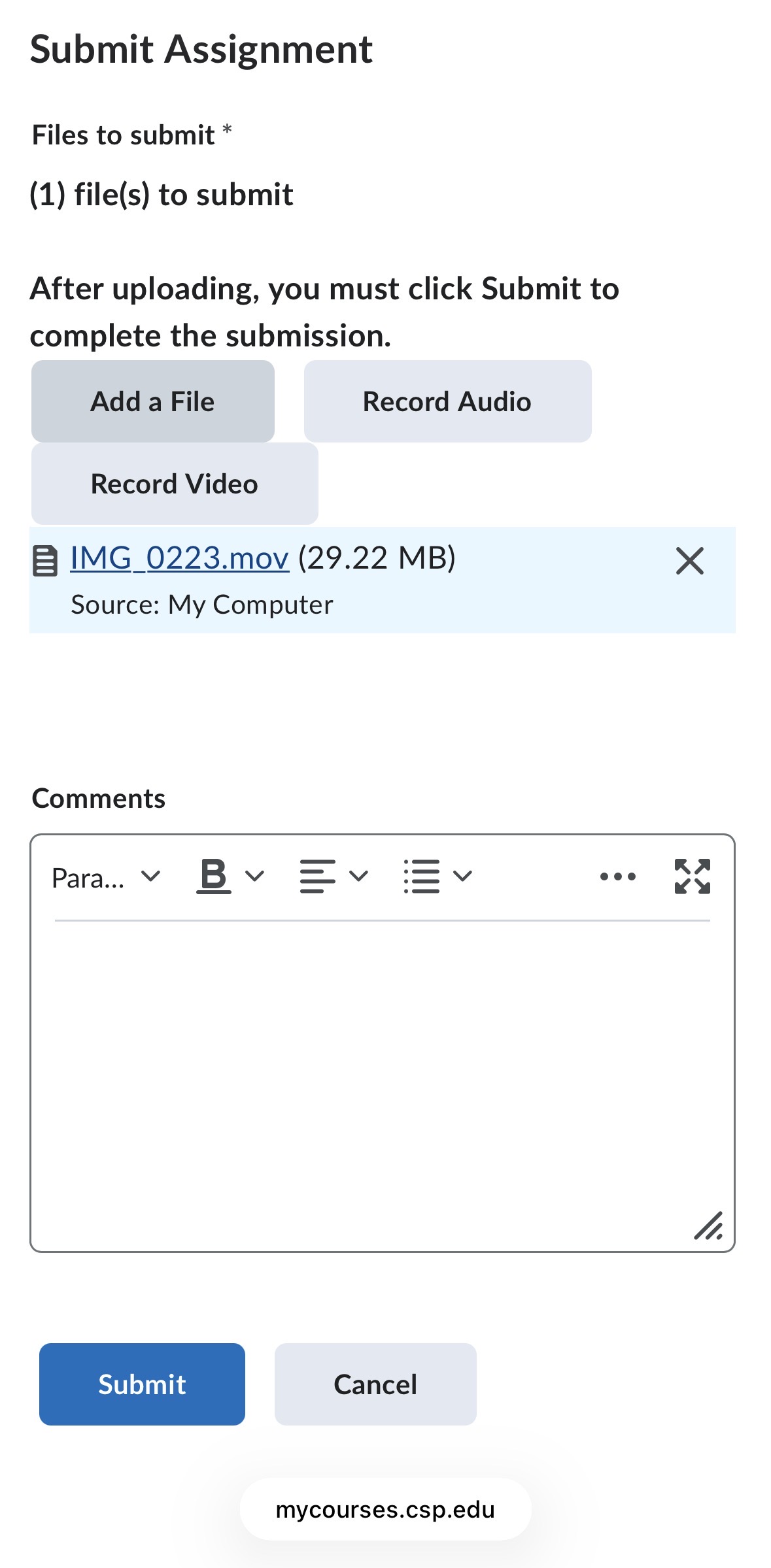
How to Record and Submit a Video Assignment with Your Phone (Pulse App)

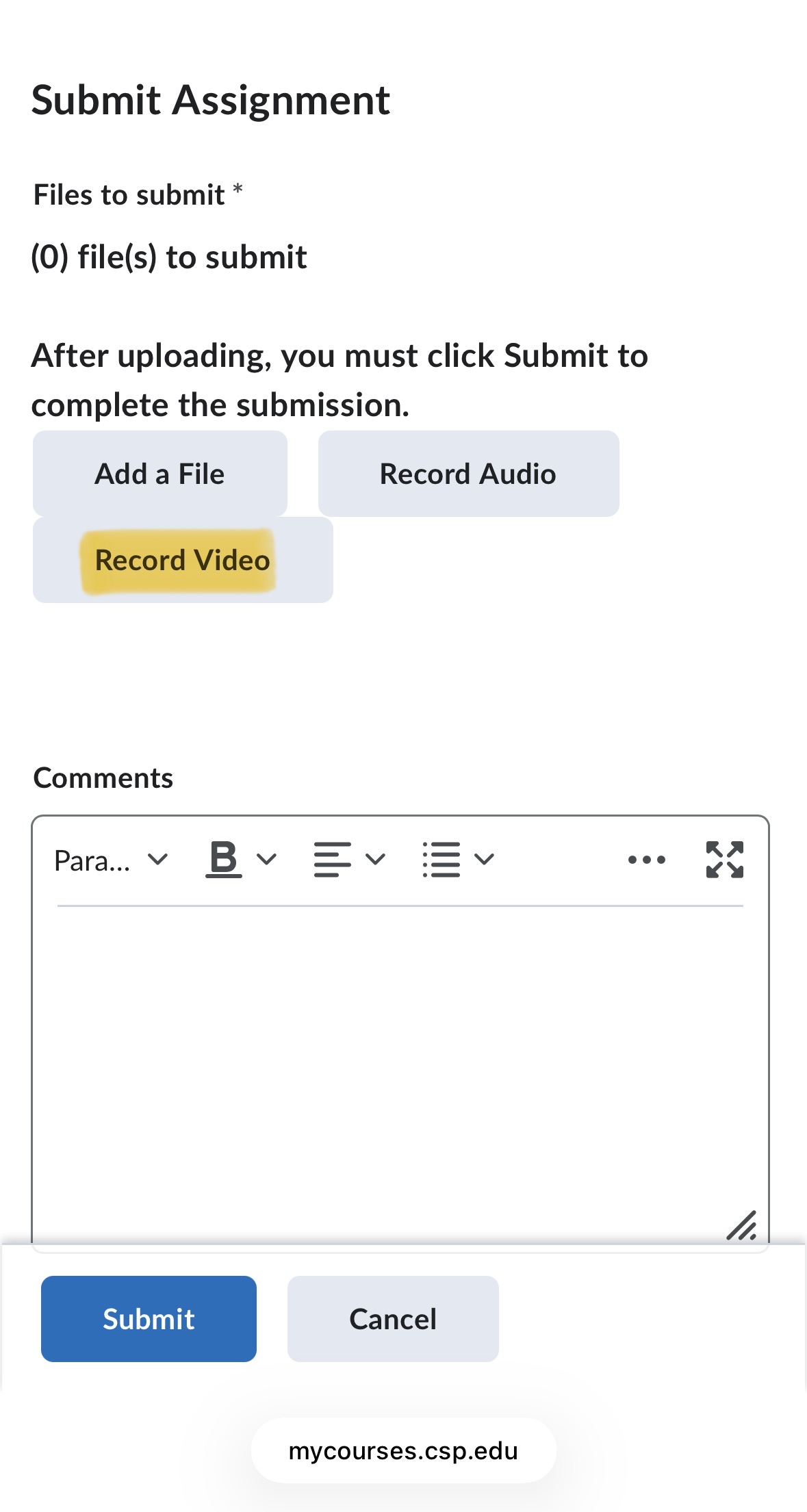
Begin by clicking into the assignment itself and then scroll down to the "Submit Assignment" area. To record a video click on the "Record Video" button. Click "Allow" to let mycourses.csp.edu access your phone's camera and microphone.
Click on the blue "New Recording" button to start and then the blue "Stop Recording" button to stop.
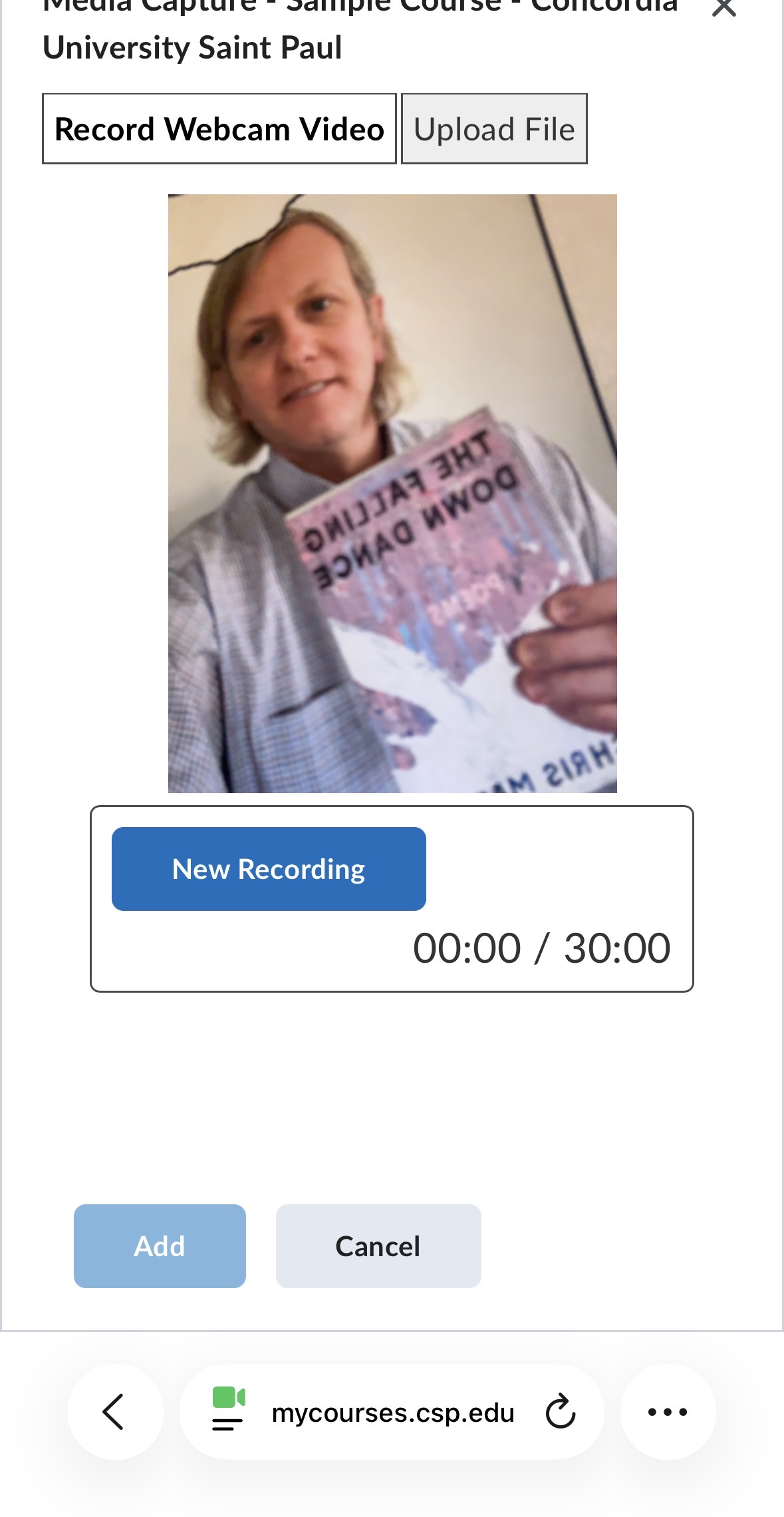
Click on the blue "Add" button.
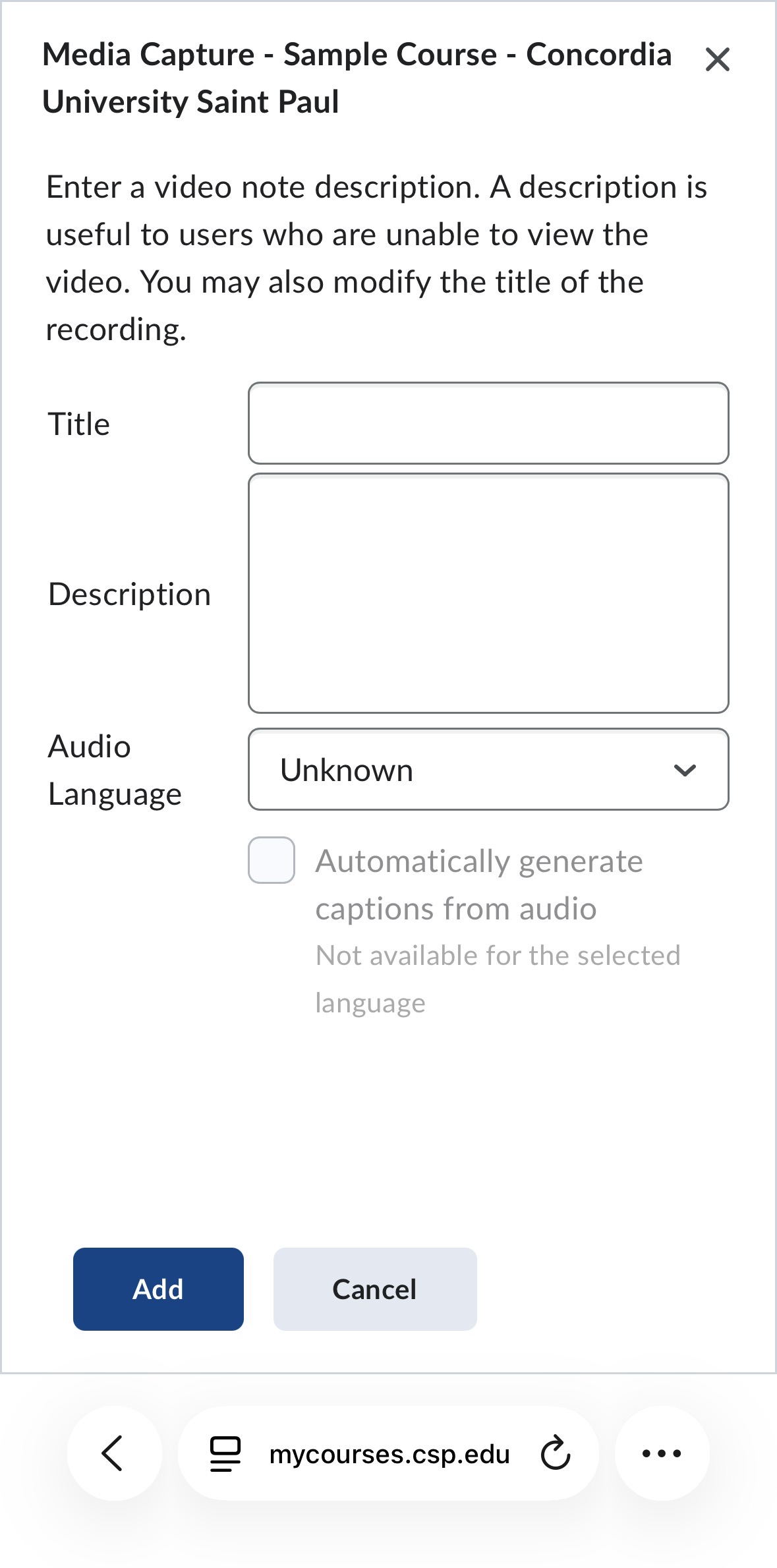
The next screen allows you to title your video and give it a description (this step is optional). Click on the blue "Add" button to proceed.
Finally click on the blue "Submit" button at the bottom of the page.
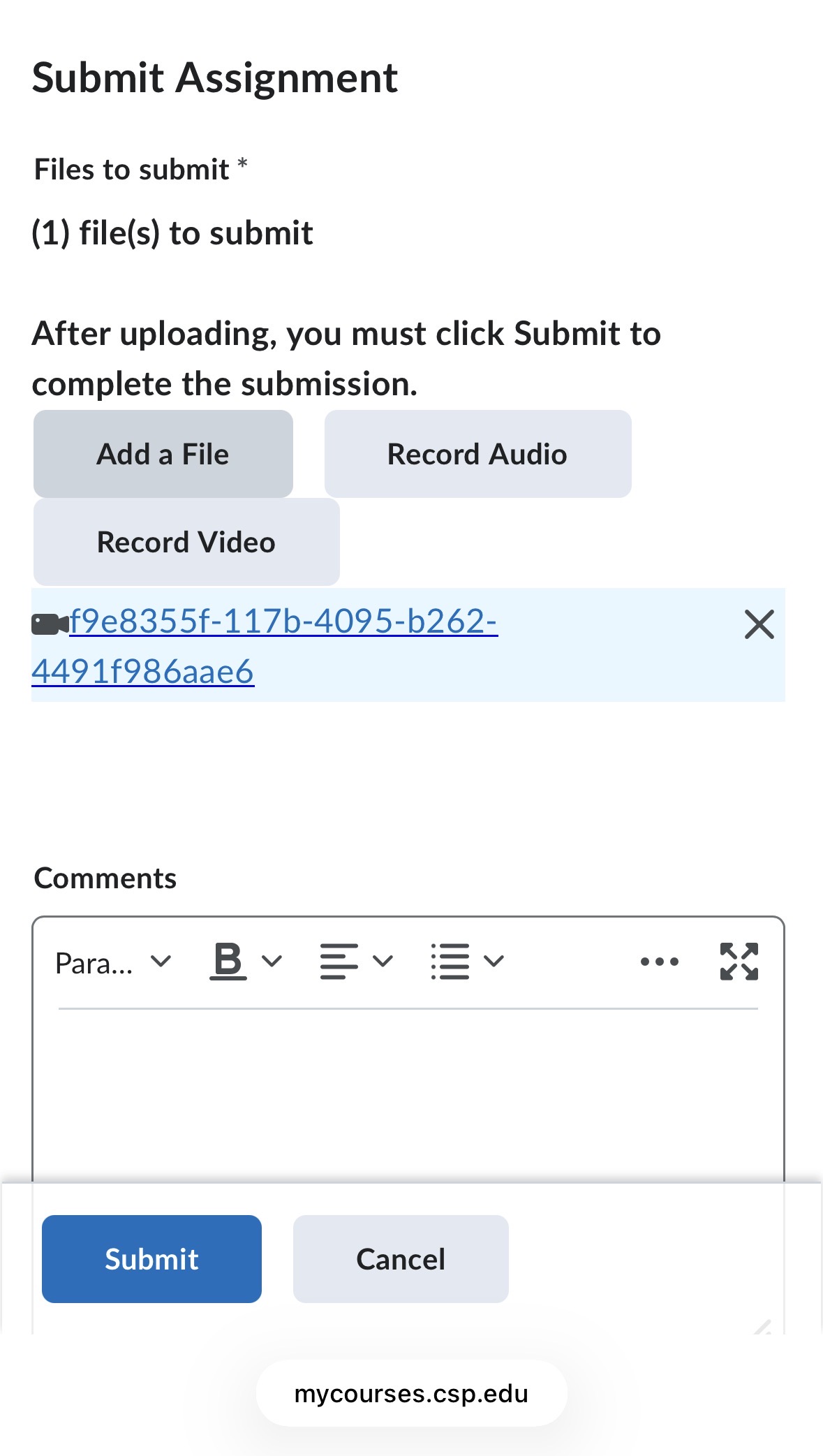
To add a previously recorded video from your phone, scroll down to the "Submit Assignment" area and click "Add a File" then click "My Computer" and the "Upload" button.
Choose a video from your photo library.
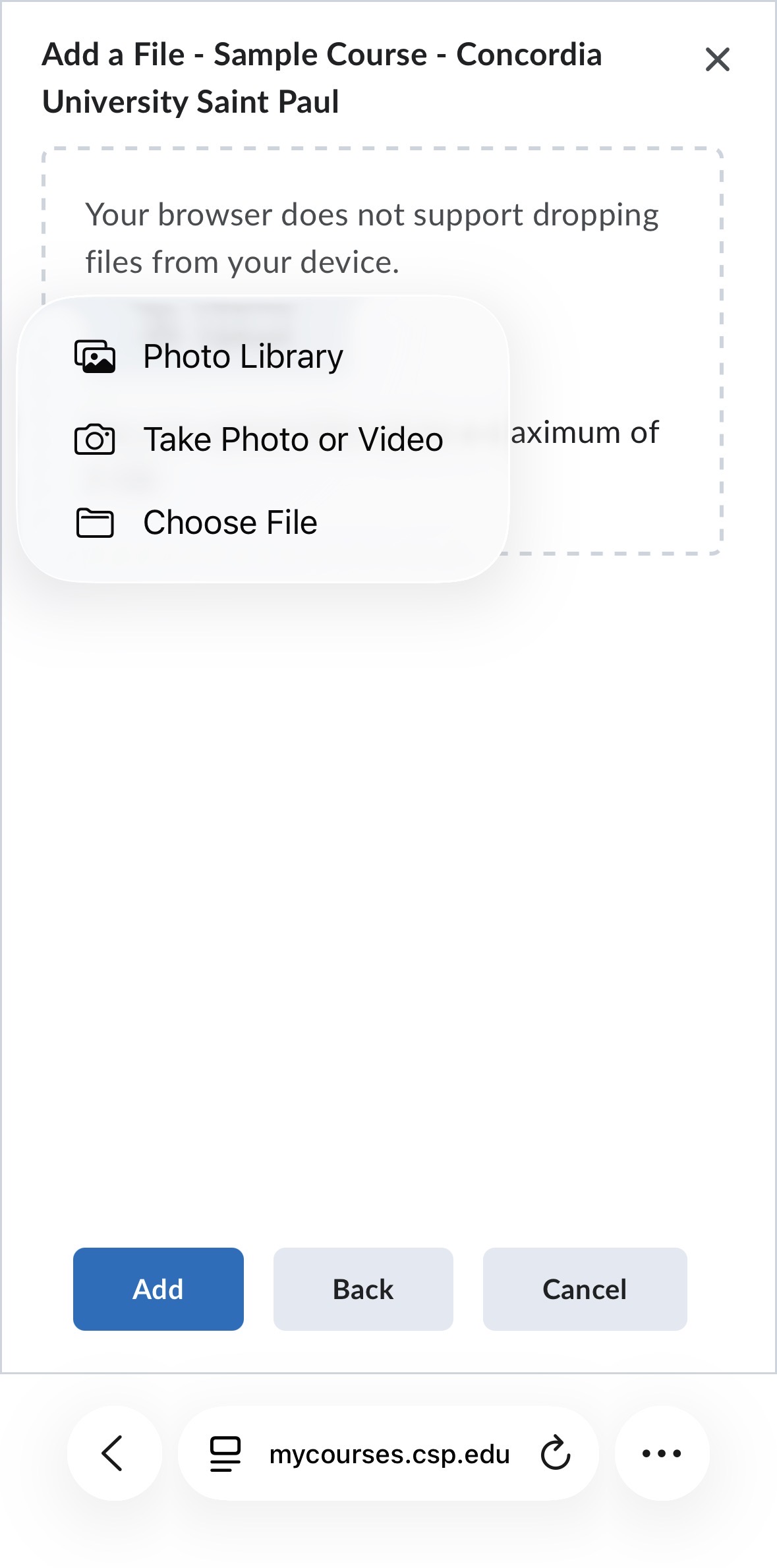
Once it's attached click on the blue "Add" button.
Finally, click on the blue "Submit" button.