


This release introduces the question annotation option in Quizzes. Learners can flag quiz questions to revisit later and apply strikethrough formatting to answer options to help narrow their choices.
Learners can select the bookmark icon  beside a quiz question to flag it for review. Flagged questions appear in the left navigation, allowing learners to quickly return to them.
Learners can also select the strikethrough icon  beside answer options to eliminate choices they believe are incorrect.
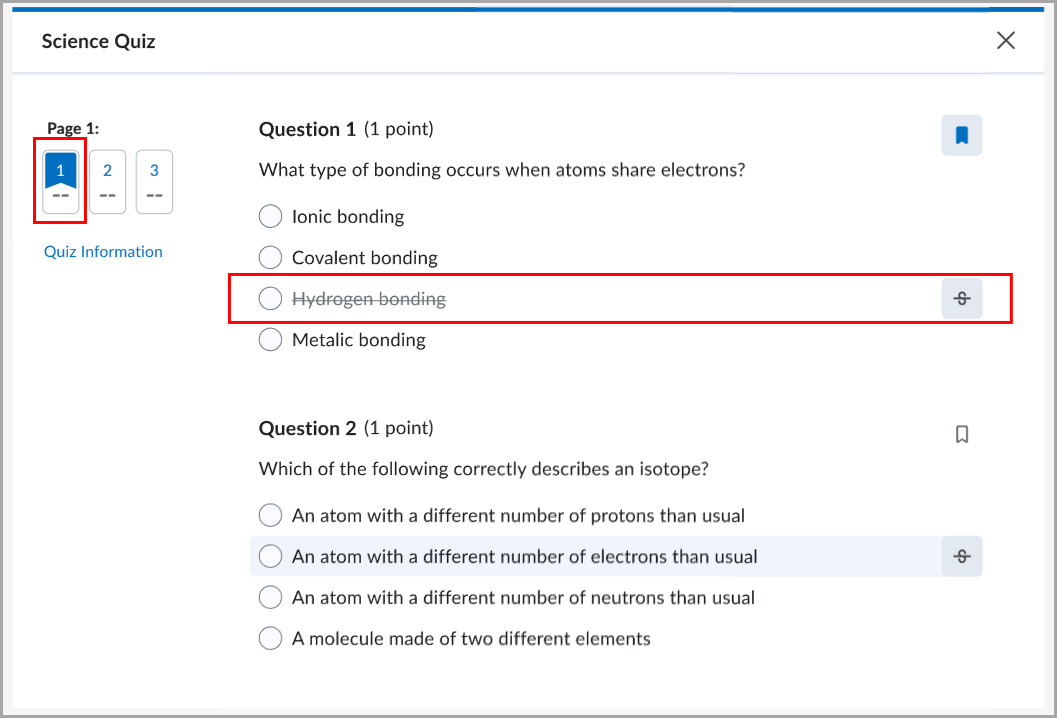
Figure: A flagged quiz question with an answer option shown in strikethrough.
Instructors can disable these tools for learners by selecting Hide question annotation tools in the Timing & Display section of the quiz edit page.
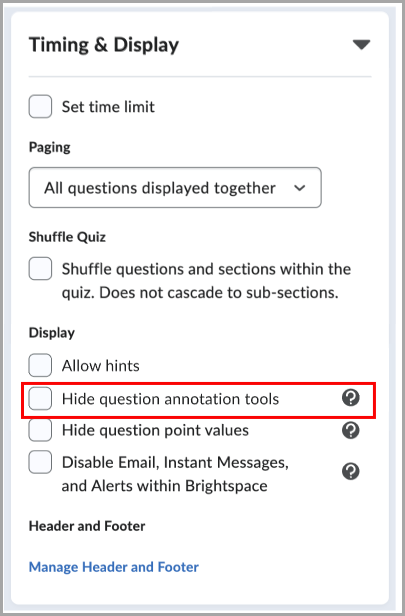
Figure: When creating or editing a quiz, in the Timing & Display section, select Hide question annotation tools to disable question flagging and answer option strikethrough for learners.
Note: If you have disabled backtracking, students won't be able to go back to a question using the bookmark feature.

